Crew Parameters are used to customize your company's crew preferences in RentalPoint.
These options range from Crew pricing to operating and terminology preferences.


Labour as % of Rental Price
To simply add crew costs to a booking based on the rental price of the booking, add a percentage value to Pricing Parameter #68.


Log out of the software and back in again for the changes to take effect.
That's it! The software will automatically add the calculated price (rental Price * labour percentage) to each booking in the Inst/Operator field.
If you later add crew designations under the crew tab of a booking, then the crew tab pricing takes precedence and will be charged to the client in place of the percentage price.
Labour Rates
Use Crew Structure Parameter #1 – Rate Structure to define crew rates

Rate structures can be entered as outlined below
- Fixed (daily) rate should be ‘Y’ if the description is for a daily rate and ‘N’ if the description is for an hourly rate
- The start/finish columns are used in combination with Crew Structure Parameter #16 – Strict Enforce of Crew Times.
- If crew parameter #16 is disabled, you can ignore the start/finish columns
- If crew parameter #16 is enabled, it means the system will force you to enter crew within the times specified in this parameter. For example, you enter crew on a booking and select ‘Hourly Rate – Weekday’. The strict times for this rate are from 6am to 9pm. If you attempt to change the start time to 5am you will receive a notification and the time will be reset to 6am.


Overtime Hours Setup defines how you would like to split up a 24 hour day.
In the example below:
- crew scheduled on a weekday for a 12-hour shift, the first 8 hours will be charged at straight time (rate x 1.0), the additional 8 hours will be charged overtime (rate x 1.5) with the remainder charged at double time.
- On Sundays and STAT holidays, all hours are charged at double time
These hourly rate structures are a guide only and can be modified when entering crew into the booking.

Task List
In addition to configuring rate structure, you may want to review Crew Structure Parameter #2 – Task List, however some companies choose not to use this level of detail so the setting is optional.
When entering crew to a booking you can select a task from a drop down list to specify exactly what that crew member is responsible for. This automatically sets the start and end dates for the crew in correlation to the calendar times on the booking. RentalPoint comes configured with a general task list as a guideline. You may want to edit the Task Name or change the default dates and times that the system uses.
To set Crew Structure, click 'Task Lists' setup in Crew Parameters


 Crew tasks can be set to either warehouse or client facing under the TYPE column above.
Warehouse tasks will NOT print on client facing documents by default, while client facing tasks WILL print
- When adding crew to a booking 'Print Assignment on quote/invoice' checkbox is automatically checked when the task is client facing
- When adding crew to a booking 'Print Assignment on quote/invoice' is automatically UNchecked when the task is warehouse facing
Other Crew Parameters
Take a few minutes to review the other Crew Parameters available. 
Labor Rates and Structure
You'll need to Set up Crew Rates for pricing before setting up Crew Products
Once crew parameters are ready to go, you’ll need to setup your Crew (A.K.A Designations/ Labor Products) in Inventory Setup. These are services that your company offers via your technicians. For example, your company may offer services from Installation Specialist to Video Technician. You may want to create a designations for these roles so that they can be easily priced for a job.
Labor Products can be used without technician assignments so that just the job itself is recorded against the booking.
OR assign technicians to each product and use RentalPoint to track crew assignments for jobs
Labor Products use the same Inventory Tree Structure as outlined for your Rental/Sales Inventory, so you can organize your labor products into groups & categories per sample screenshot below. 
Add Labor Product
Once your Labor Rates and Tree Structure are set up (see above), you're ready to Add Labor Products.
From Product setup highlight any labour category folder or existing labour product click 'New'
The new product will be added under the category you have chosen

When Labor Products are set up, proceed to Technician Tree Structure if needed.
General Tab
Enter a unique Product Code and Description, such as VIDTECH and ‘Video Technician’.
Optional Information
- Enter an external description that will be printed on documents that are given to clients.
- The Revenue Code is used to link the financial transactions to an external accounting program.
- Check 'Technician Assignment Required' only if you want to force users to choose a qualified technician when adding this labour product to a booking.
- Hourly rate structure is pulled from Crew Parameter #1 which you would have set up earlier. Choose the rate structure that applies to this labour product if default is not sufficient.
- Check 'Tax Exempt' if tax should NOT be applied to this labour product when added to a booking.
- Check 'Minimum Hours' if you apply a minimum charge for this labour product when added to a booking (Crew Parameter #12)
- Use 'change icon' to change the icon display of this product in the equipment grid if desired.

Rates Tab
Once the crew rates have been set up in Crew Structure Parameter #1, enter the different rates for the crew here. These rates will be used to calculate cost when adding this labour product to a booking.
- Use the drop down under 'Default' to identify any rate as the default rate. This is the rate that will be loaded when the labour product is added to a booking.
- Use the Default Rate for Unassigned Lines to automatically fill a value for designations added to a booking without an assigned technician


 For our multi location module, use the location drop down to set up labour rates on a location by location basis. If no rates are entered for a given location, the rate for location 0 will apply . When entering crew assignments, the rates will be based on the location of the booking. Please note that this functionality is not retroactive. If you have previously entered crew assignments for a booking, you will need the reload the rates for the changes to take effect.
Notes Tab
This tab stores any notes about the Labour Product including print options for output documentation.

Attachments Tab
Attach files relevant to the product here. A link to the file is stored against the product.

Technician Tree Structure
A technician is defined as someone who works for your company, where the cost or scheduling of that work needs to be recorded against bookings in RentalPoint. Technicians associated with Labor Products in Inventory Setup can be assigned to those Labor Products within a booking.
The Technicians Folder also uses the same Inventory Tree Structure as outlined for your Rental/Sales Inventory, so you can organize your technicians into groups & categories per sample screenshot below. This tree structure need only be set up once and referenced thereafter.
The structure can be as simple as one group and one category OR several groups/categories for full/part time crew, onsite/warehouse staff.
Fig 1.1
Associate Technicians with Labor Products
Existing Technicians can be associated with Existing Labor Products (above) so that qualified technicians can be assigned to Labor Products on a booking.
from the Products menu, highlight any ' under Labor Products, then click
Enter any search keywords and click GO, then click OK to save.

The new technician is added under qualified technicians for the labour product

Alternatively, click any technician in the Technicians tree, click on properties, then click the Contracting tab to add a new designation for the technicians Primary Skills.
Other Technician Assignment Options

Before you can enter crew in the booking, the crew needs to be set up in your Inventory. See more information at this link Set up Labour Products and Technicians


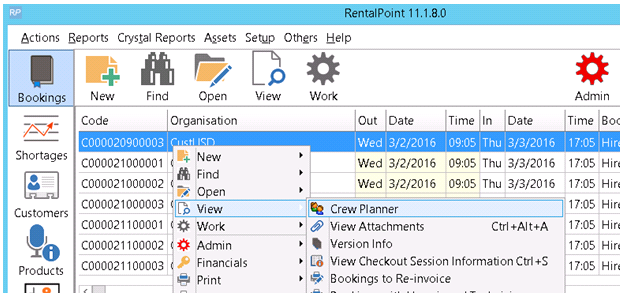
Click VIEW on the Bookings tab Menu and choose Crew Planner to see crew assignment dates of selected booking.
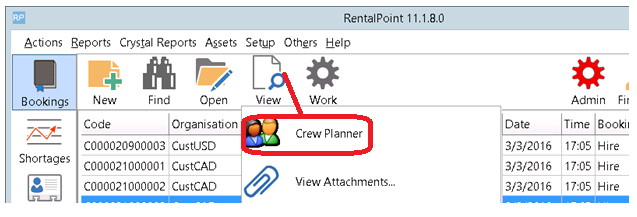
OR right click on the booking, click View-->Crew Planner